
Preparing an MCP connection
Keep the guide handy.
Find prerequisites, connection commands and the limits of read-only access.
Open the MCP documentationAI assistant & built-in support
Ask the AI assistant a question, report a problem and track its progress in the same panel, without leaving your workspace.
Once signed in, open the support bubble at the bottom right of the application.
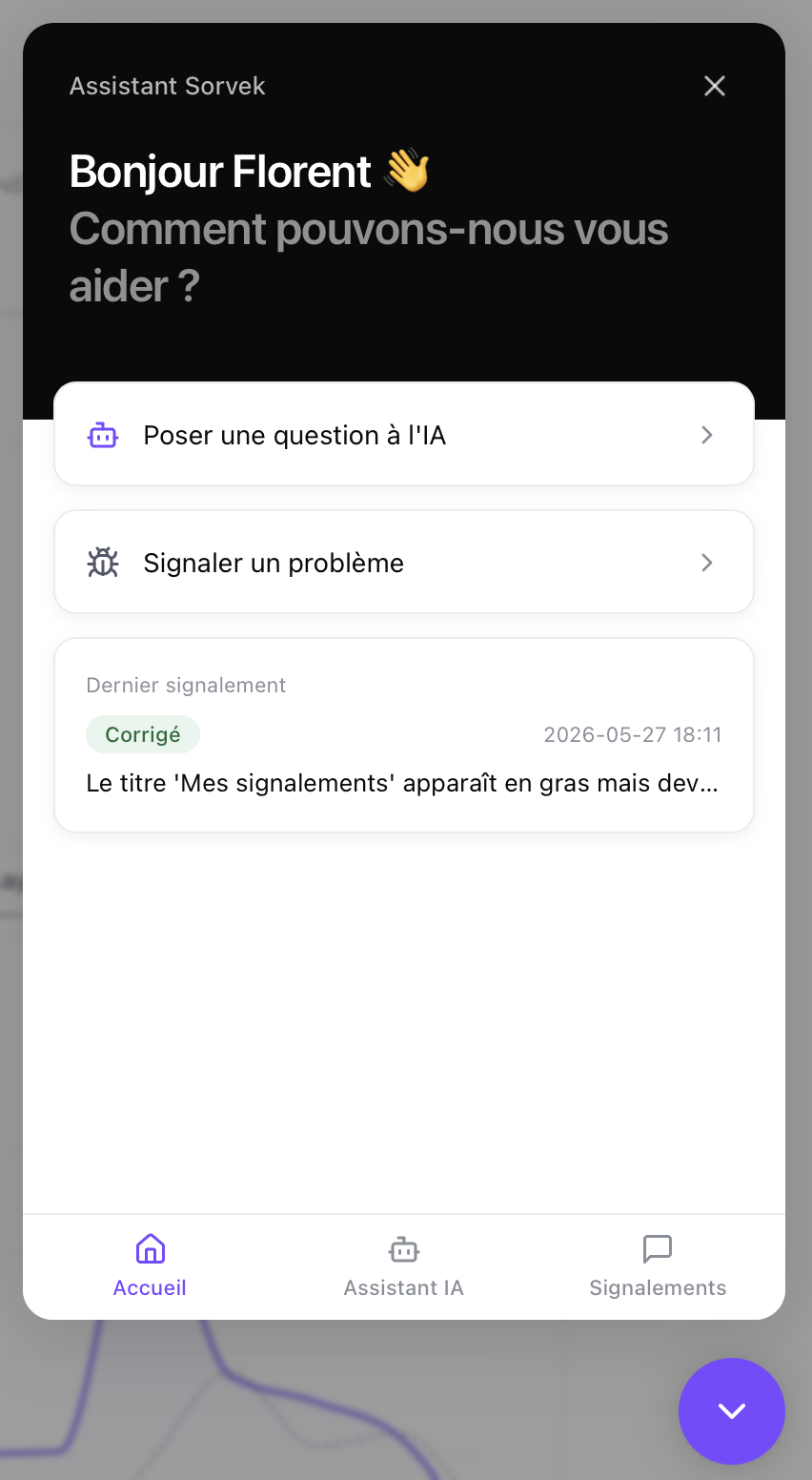
The assistant draws on your organization and the screen you are viewing: discovered applications, accounts, risks or permissions. Ask your question from the record you are reviewing.
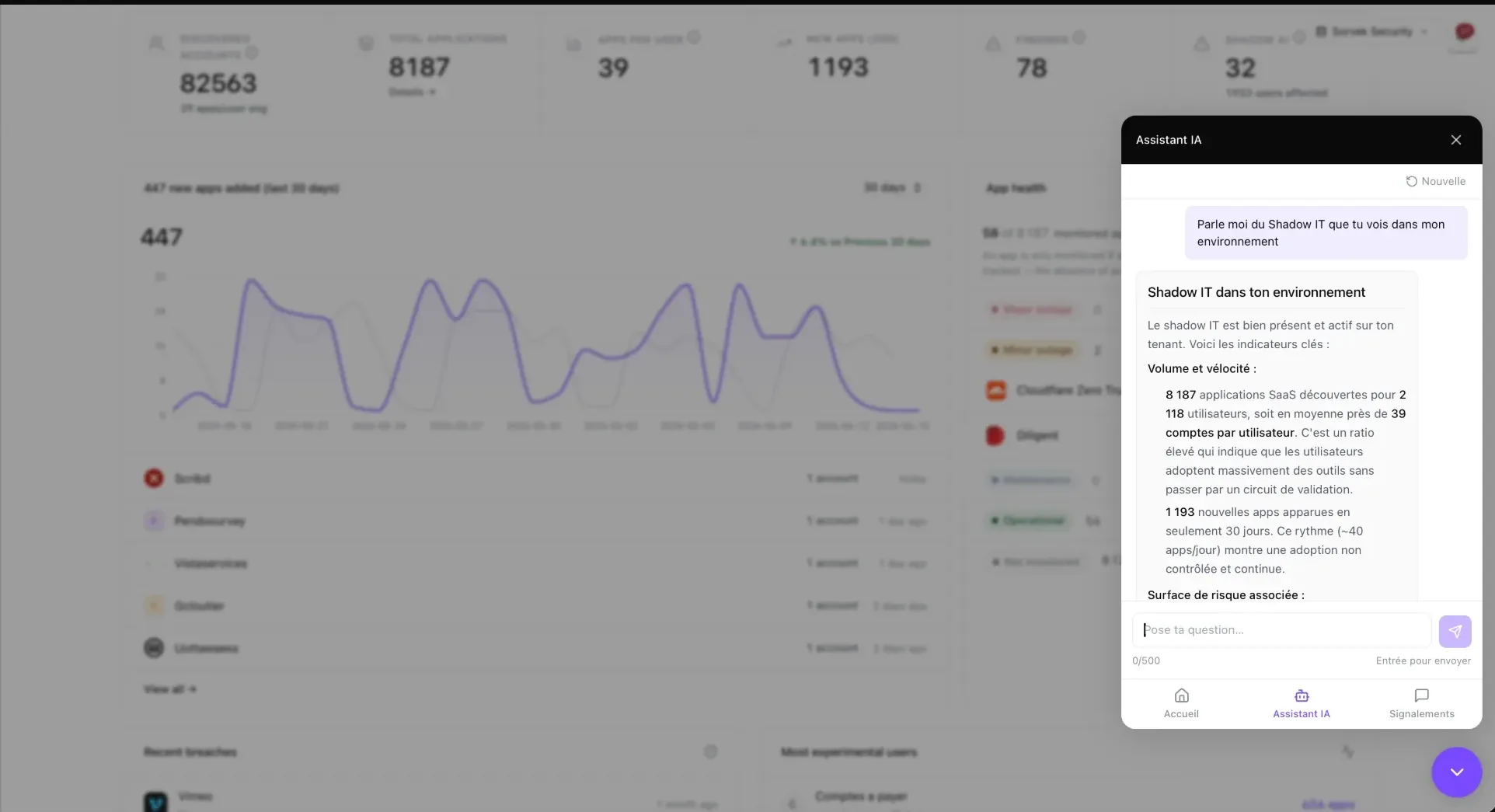
Ask for an explanation about an application, a user or an audit. The answer appears progressively in the assistant panel while your environment stays in view.
In the support bubble, choose “Report a problem”. Describe what is happening, attach a screenshot if useful and specify the severity. Then follow progress under “Reports”.
Your report is saved with your description and any attachments you added.
Automated analysis examines the problem and gathers the information needed to address it.
A fix is prepared and checked. Comments help explain what was identified.
The report indicates that the fix is available. You can check the result in your workspace.
Dated statuses, comments and screenshots remain in the history. Your latest report is also visible on the support panel’s home screen, so you can pick up where you left off next time.
Before attaching a screenshot, hide secrets, API keys and personal data that are not needed.
Preparing an MCP connection
Find prerequisites, connection commands and the limits of read-only access.
Open the MCP documentationNo access yet or unable to sign in
If you cannot open the support bubble in the application, email us. Describe the issue without sharing a password or secret.
contact@sorvek.com